Find any information related to your learning evolution.
Have an optimal experience on Smith+Nephew Academy Online
To help you achieve an optimal experience on Smith+Nephew Academy Online, we’ll provide answers to the most frequently asked questions on technical issues, account registration, learning pathways and more. Search the FAQs below or contact us for further assistance if you can’t find the answer you need.
Important: Due to recent deployment of an upgraded version of the platform, some screenshots might no longer be relevant or accurate. We are working on replacing those screenshots and we apologise for any inconvenience.
Frequently Asked Questions
Topic outline
- Section 1 - My learning journey
- How to register on Smith+Nephew Academy Online?
If you don't have an account yet, you need to register to access the educational content.
- Option 1: You participated in a course and therefore received a communication from us to finalise your registration. Find the process below or in this document.
- Open the pre-registration email and click on the provided link.
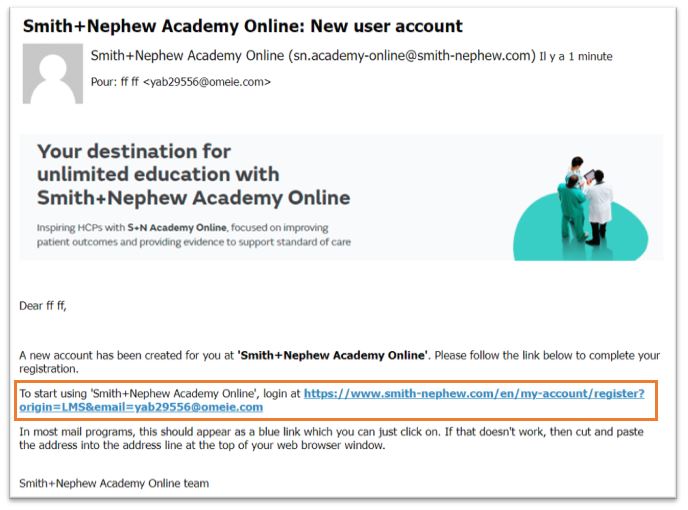
- Fill in all the fields to complete your registration. The email field will be filled in automatically.
- Scroll down to the bottom of the page and click on “Register”.
- Go to your inbox and look for an email from Smith+Nephew called “Activation”. Check your spam/junk folder.
- Open the email.
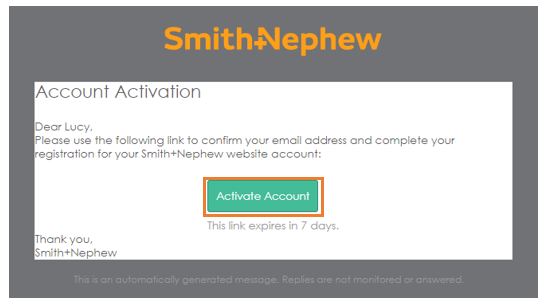
- Click on “Activate Account”.
- In the new window, you will have to configure your password. To do so, click on “Set up”.
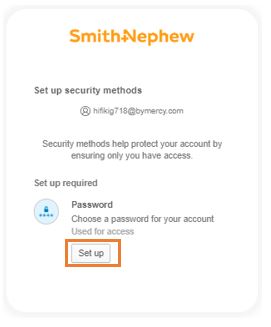
- Choose your password and confirm. You will be redirected on Smith+Nephew Academy Online.
- Option 2: You didn't access a course or are not required to complete a module. Find the process below or in this document.
- Click on the "Register Now" or “Register” buttons.
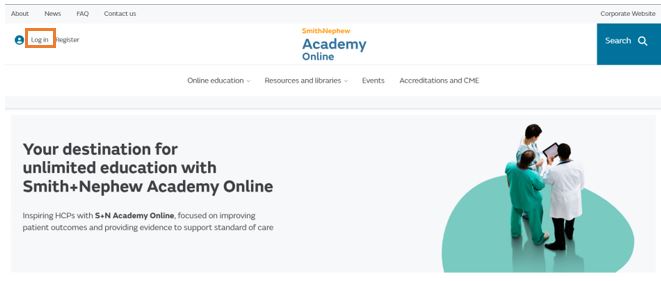
- Fill in the different fields.
- Scroll down to the bottom of the page and click on “Register”.
- Go to your inbox and look for an email from Smith+Nephew called “Activation”. Check your spam/junk folder.
- Open the email.
- Click on “Activate Account”.
- In the new window, you will have to configure your password. To do so, click on “Set up”.
- Choose your password and confirm. You will be redirected on the Smith+Nephew Academy Online home page.
- How to access my dashboard?
You are automatically directed on your dashboard page when you log on Smith+Nephew Academy Online. If you have been navigating on the platform and want to come back on this page, click on the Smith+Nephew logo situated at the top of the screen (
).
The dashboard page looks like this:
- How can I find my learning journey?
To locate the "My Learning Journey" page, log into Smith+Nephew Academy Online. You will see the tab "My Learning Journey" in the main menu:
Click on this text to access your "My Learning Journey" page.
- How do I see my progress?
Log on Smith+Nephew Academy Online. There are different ways to see your progress.
1) From the home page, scroll down to the section called “Current learning” to see your progress. All educational modules you are currently enrolled in are displayed into that section. You can view the status of each module thanks to a progress bar.
2) You can track your progress from your "My Learning Journey" page, where you will also find progress bars.
3) You can also track your progression of a specific module from the module page.
- Where do I find content that was assigned to me?
You know that you have been assigned some content, but you cannot find it?
Log on Smith+Nephew Academy Online, click on "My Learning Journey" on the top of the screen, in the main menu. You will be redirected to a page displaying all of your pending and completed modules and educational pathways.
Scroll down to the list of content and look for the "Module due date" or "Due/Status" column. If you can see something in this column for a module or educational pathway, this means it was assigned to you.
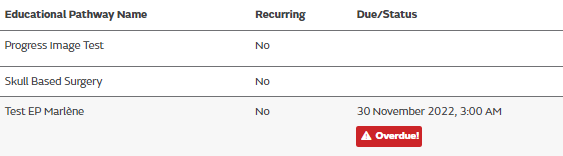
- How can I obtain a certificate?
You might have lost your certificate and want to download it again. There are 2 ways to download a certificate. You will need to be logged in to access your certificates.
1) You can download a certificate from your profile. To do so, click on your name on the top left corner of the screen.
Then, click on "Profile". You will be redirected to your profile page.
Scroll down to the section called "My Learning".
Click on "My Learning Journey (dashboard)".
You will be redirected to the page where all of your certificates can be downloaded. If you don't see the certificate that you want in the list, it might be that you never downloaded it. In this case, follow the procedure below.
2) You can download a certificate from a completed module page directly. To do so, go to the module you want the certificate of. Scroll down to the section called "Certificate of completion". Click on the blue text to download the certificate.

NB: The full completion of the mandatory activities in the educational module is required to get the certificate of completion. Your certificate will be made available only on completion of the mandatory activities.
In addition, in the context of the educational activities accredited by the Royal College of Surgeons of England (RCS), your acknowledgement of the full completion is required as well as the fulfilment of the feedback questionnaire. If you would like to know more about the accreditation, please visit the section "Accreditation & CME" .
How to access certificates (3 videos)
- Learner receives certificate on completion of feedback questionnaire via email (clicking on "Continue") and can download directly to device (clicking on "View certificate")
- Learner can access certificate via "My certificates" found in their profile
- Learner can access via the module located within "My learning journey"
To navigate through these videos:
Click on the arrows underneath the preview window or choose from the list to the right of the preview window.Would you like to resume the video where you left off? Click “Yes” to resume or click “No” to start from the beginning
Would you like to resume the video where you left off? Click “Yes” to resume or click “No” to start from the beginning


- Section 2 - Navigation on the platform
Find any information related to navigating on this platform.
- How can I filter the educational content via the Search feature?
You can use all the different filters to help you find what you are looking for. You can combine several filters to refine your search, either by resource type (module vs educational pathway), certification, profession, asset type, pathology, procedure, product, language and duration.
Simply tick or select the filters that interest you.
Below is an example of a search for any RCS accredited content dedicated for all HCPs learners interested in Orthopaedics.
- How to complete a module or educational pathway?
Log on Smith+Nephew Academy Online. When connected, look for the educational content you want to complete using "My Learning Journey" page if it was assigned to you. If it was not assigned, browse our offering using the main menu with features like "Online Education" and the search bar.
When you see a module or educational pathway you want to complete, click on it. A drop-down summary of the content will appear.
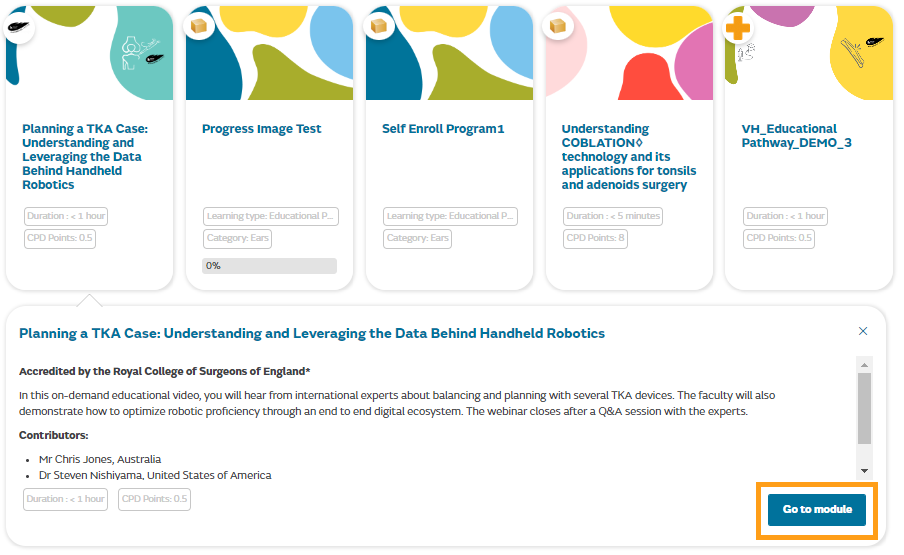
Click on the button "Go to module" to access the module. You will be taken to the module enrolment page.

From there, click on the "Enrol me" button. You are now on the module page. Scroll down to access the content and start learning!
- What is the "Related learning" section?
This block might appear on a module and showcase content that is directly linked with the topic of the module you are currently completing. This content has been meticulously selected by our experts in case you want to learn more on a specific topic.

- What is the difference between a module and an educational pathway?
A module is composed of one or several activities such as videos, resources, podcasts that intend to deep dive a specific topic.
An educational pathway is composed of modules dedicated to a same subject. Some module may be mandatory to complete the pathway while others might be optional. It allows a progression in learning.
- Section 3 - Private information and profile update
Find any information related to updating your personal data on Smith+Nephew Academy Online.
- How to change my password?
1. Log on Smith+Nephew Academy Online. When you are connected, click on your name on the top left corner of the screen.
2. Then, in the drop-down menu, click on "Profile". You will be redirected to the "Profile" page.
3. From this page, click on "Edit profile". You will be redirected to a new page. Click on "Login" if you are not automatically logged in.
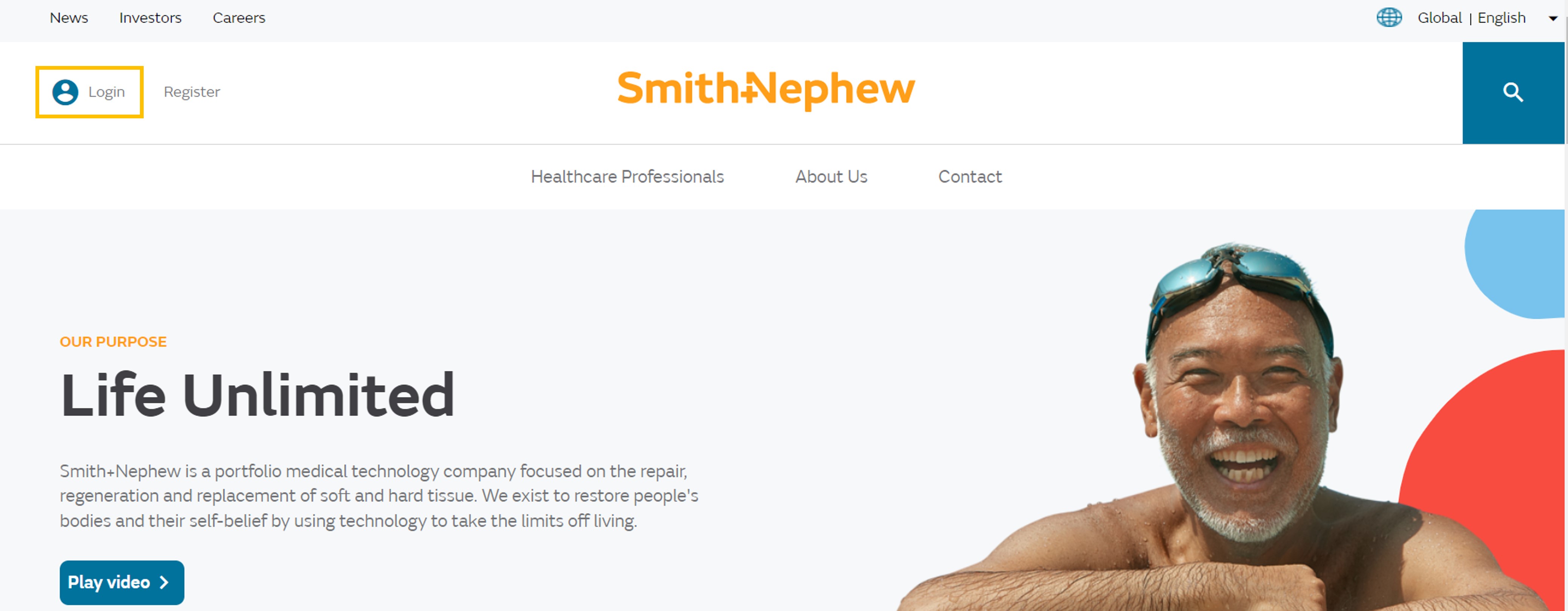
4. When logged in, click on your name on the top left corner and click on "My Profile".
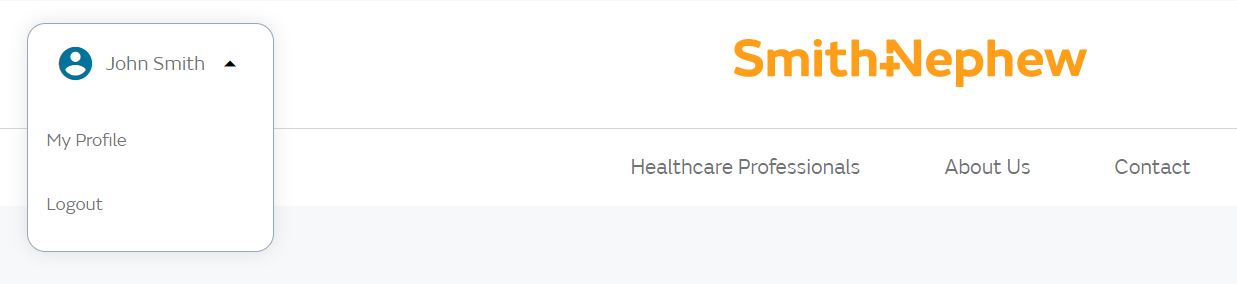
5. Scroll down to the button "Edit details" and click on it.
6. Click on "Change password" to reset your password.
- Section 4 - Technical questions
Find any information related to technical elements on Smith+Nephew Academy Online.
- My account is blocked after entering my password several times
After entering a wrong password several times in a row, your account will be blocked for ~15 minutes for security reasons.
You just need to wait until you can try again.
Remember that, if you have forgotten your password, you can click on the "Forgot my password" button to update it and log in.
- Education+Evidence migration to Smith+Nephew Academy Online
On the 23rd January 2023, the Education+Evidence platform has been migrated to the Smith+Nephew Academy Online platform in order to centralize all medical educative resources in one place. If you had an account on Education+Evidence, you will not be able to access it after this date.
Due to this migration, you may be in one of these 2 situations:
- You already had a Smith+Nephew Academy Online account.
If that's the case, on your next connexion to Smith+Nephew Academy Online, you will have to change your password. To do so, access the Smith+Nephew Academy Online platform.
Click on "Log in" and you will be redirected to this page:
Click on the "Forgot my password" button and follow the normal procedure of password reset (see section 3). - You don't have a Smith+Nephew Academy Online account yet.
We invite you to create a Smith+Nephew Academy Online account, as Education+Evidence accounts will not allow you to access the Smith+Nephew Academy Online platform and content.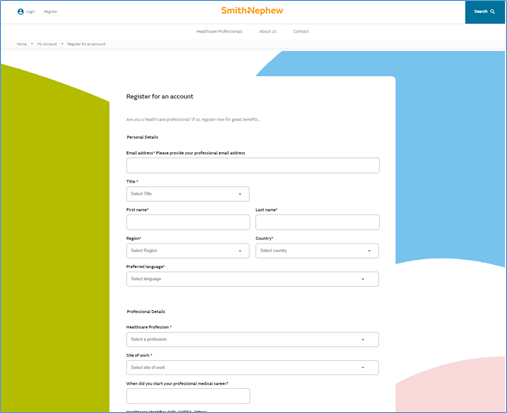
Follow the registering process to the end. You will receive a registration email with a link that will help confirm your account. After that, you will be able to access the Smith+Nephew Academy Online content.
- You already had a Smith+Nephew Academy Online account.
- Which devices/internet browsers are supported?
The following browsers are supported by Smith+Nephew Academy Online and the site is responsive on mobile devices.
- Microsoft Edge
- Google Chrome
- Safari
- Firefox
- The module is not showing complete in “My Progress”
If a completion activity is not highlighted in a module (ticked), it means this has not yet been completed. Once all activities are complete, your progress bar will show 100%.
- One activity doesn’t show up or doesn’t open in a module
It can happen due to pop-up blockers. In that case, check into your navigation bar if there isn’t a pop blocker message and select “always allow pop-ups from Smith+Nephew Academy Online” and click on “Done”.
- Section 5 - Local specificities
- Important: Update your AHPRA number (Australia only)
Make sure you provide us your AHPRA number when registering.
Australian local regulations state that Smith+Nephew is only to make medical education content available to qualified healthcare practitioners with an AHPRA number. Your account will be suspended if a valid number is not provided 10 days after a verification email is sent out by our system.Send an email to sn.academy-online@smith-nephew.com if you need to add your APHRA number and/or if you account is suspended.